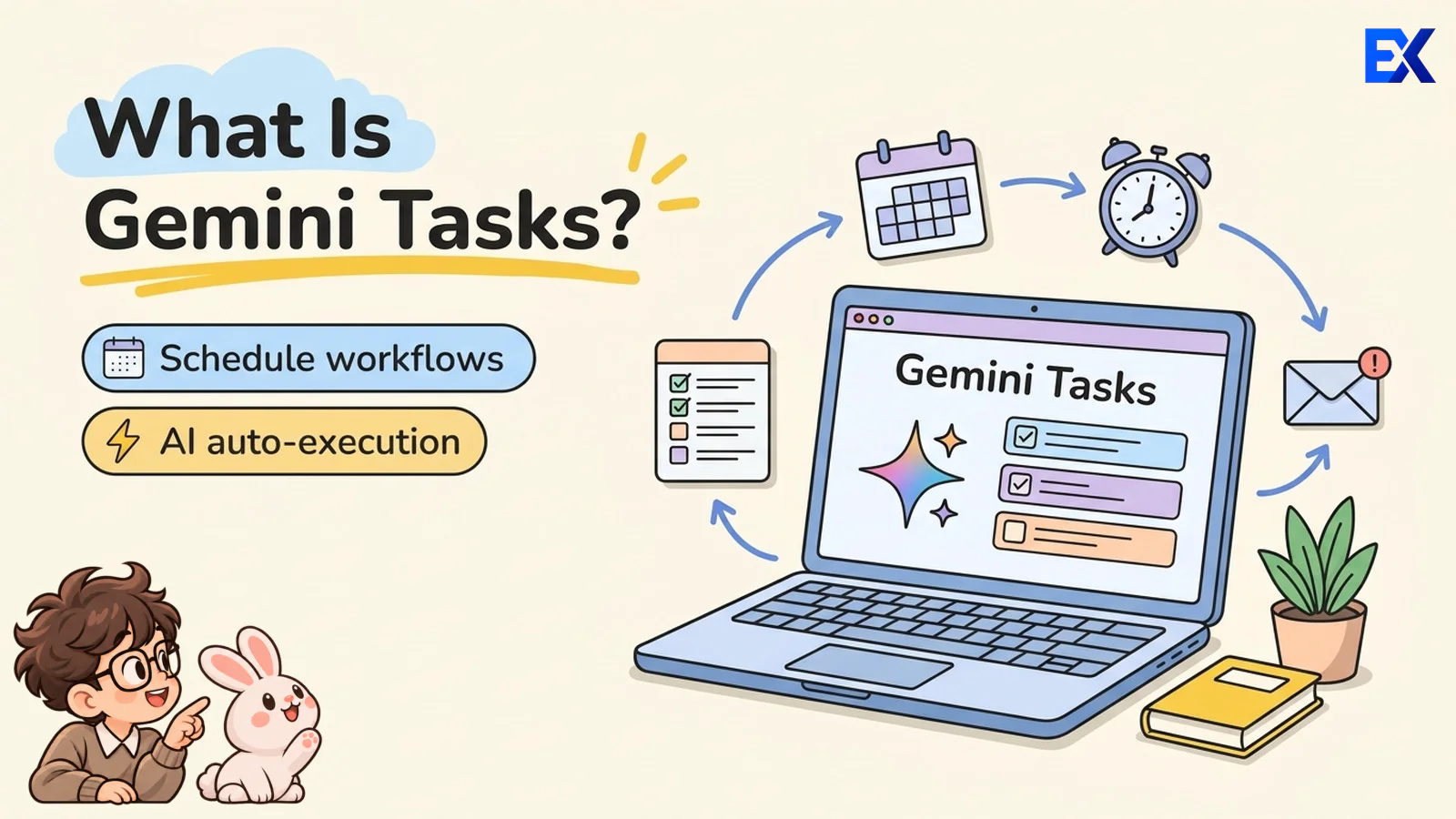
Learn how Tasks in Gemini automates multi-step workflows using tasks, schedules and skills, compare Free/Plus vs Pro/Ultra schedule limits, check regional rollout, and distinguish Tasks from Scheduled Actions.
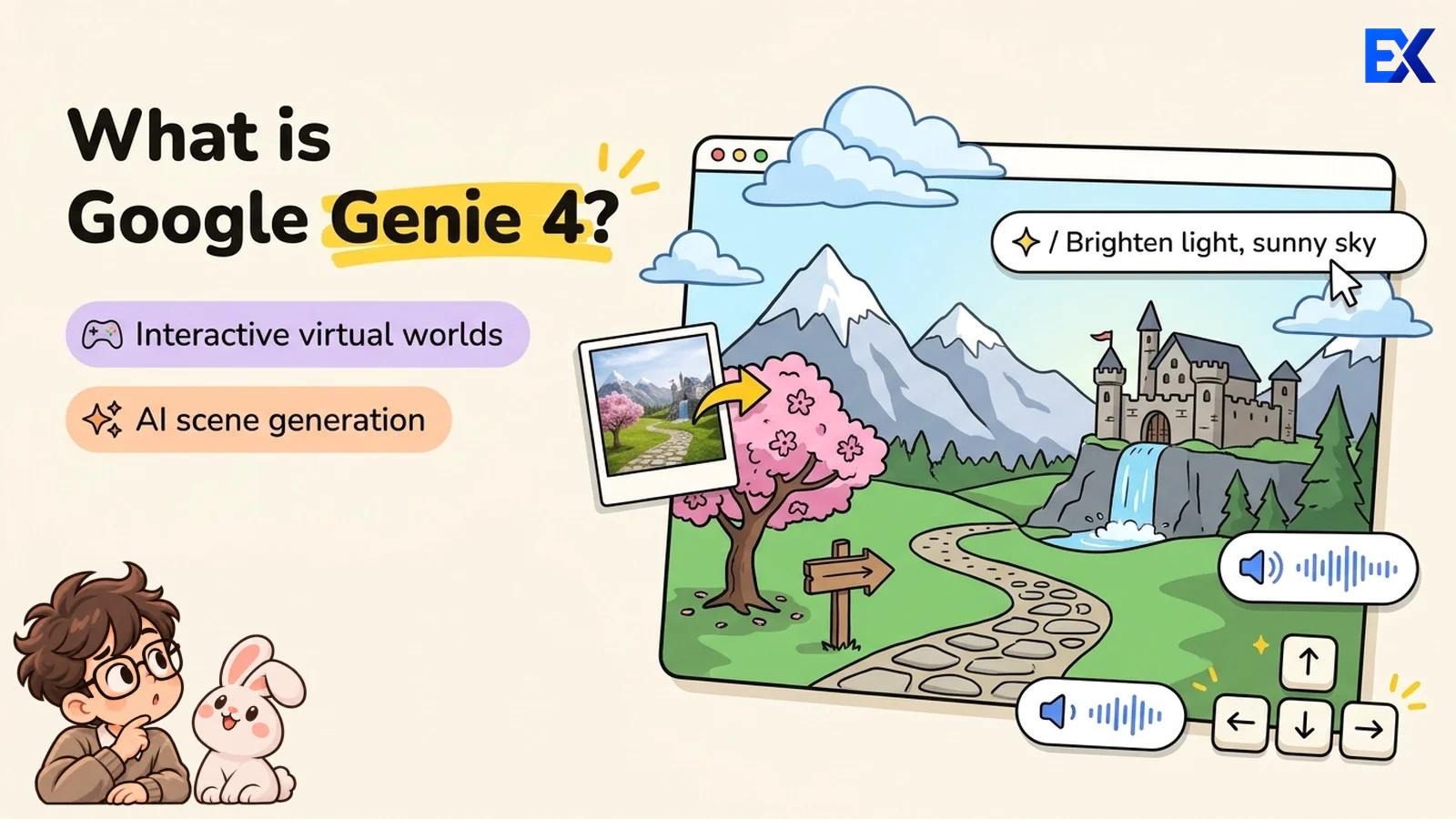
What is Google Genie 4? Explore 720p real-time interactive worlds, native audio, Genie 3 differences, Project Genie access and Gemini API availability.
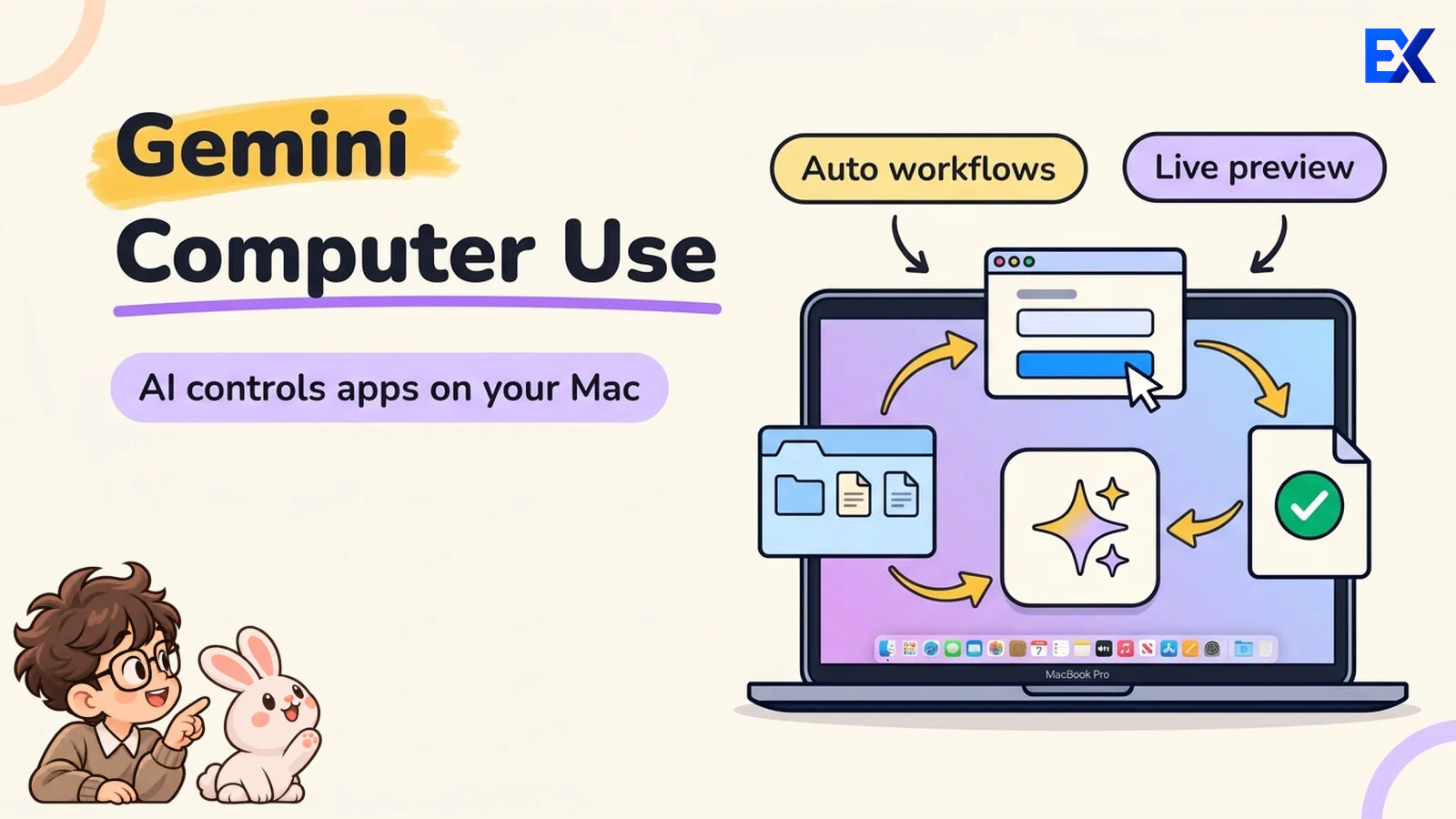
Gemini Computer Use (triggered inside the Gemini app for Mac by typing @Computer use) is a multi-step agentic feature that lets Gemini operate macOS graphical interfaces — clicking, typing, scrolling, navigating menus, and filling forms across local files, native desktop apps, and websites. Announced on November 19, 2026, it executes inside an isolated background window with a live preview inside your chat thread, leaving your primary cursor and screen free so you can keep working without interruption.
Important regional availability notice (checked November 22, 2026): Google's initial rollout is limited to English in the United States on Apple Silicon Macs running macOS Sequoia 15.0 or later, using a personal Google Account (18+) with Google AI Plus, Pro, or Ultra. Purchasing a paid plan in Vietnam or using Windows does not automatically unlock this Mac computer-use feature outside supported rollout regions (Google Mac announcement).
How @Computer use Works in an Isolated Virtual Window
Unlike a standard chat assistant that only tells you where to click, Computer Use acts directly inside desktop software — while avoiding the cursor-hijacking problem common in traditional macro or desktop bots:
Your main screen stays completely free: Once prompted with @Computer use, Gemini moves the target application workflow into an isolated virtual window in the background. You retain full control of your physical cursor and active desktop apps to type, design, or stay on video calls.
Live chat preview with instant override: Inside the Gemini thread, a real-time preview lets you watch each click, keystroke, and screen switch. You can expand to Full screen for closer inspection or click Stop task at any moment.
Adaptive UI reasoning, not brittle macros: Rather than replaying hardcoded screen coordinates, Gemini interprets UI state dynamically across apps (for example, pulling meeting notes into a draft email). Even so, unexpected layout changes, login gates, or OS prompts can pause a workflow and require manual intervention.
Illustrative diagram showing how @Computer use runs inside an isolated virtual window on Mac
For higher-quality multi-step reasoning and screen navigation on Mac, Google's official help documentation recommends choosing Gemini 4 Hydrogen or newer models (Google Mac Computer Use help).
Requirements: Hardware, Account, Plan & Rollout
Google's November 19 announcement and Help Center documentation establish strict criteria separating the general Gemini app for Mac from Computer Use across desktop apps:
Requirement
Official Computer Use Requirement
Key Distinction
Mac Hardware
Apple Silicon Mac, 8 GB RAM or more, >= 200 MB free space
Intel Macs are not supported in this initial rollout
Work or school Google Workspace accounts are NOT supported for Computer Use (even if admins enable the base Mac app)
Subscription Plan
Keep those boundaries separate: installing Gemini on Windows or enabling Gemini in Chrome does not provide native desktop-app automation on macOS, and Work/School accounts that can open basic Mac chat still do not unlock @Computer use inside Mac desktop apps.
How to Set Up & Use Computer Use on Mac in 5 Steps
For users meeting Apple Silicon, OS, account, and US rollout requirements, setup takes five steps:
Install & update the Gemini Mac app: Download the installer from gemini.google/mac, drag Gemini into Applications, sign in with your eligible personal account, and run Check for Updates from the menu bar (you can also invoke quick chat anytime with Option + Space).
Enable Computer Use in Settings: Open the Gemini app on Mac, choose Gemini → Settings (or press ⌘ + ,), open Computer use on the left sidebar, and turn on Allow Gemini to work with your Mac.
Grant required macOS permissions: When prompted, enable Accessibility and Screen & System Audio Recording for Gemini in macOS System Settings so it can observe windows and perform clicks or keystrokes inside its virtual screen.
Enable backups & filter apps upfront: In the settings panel, confirm is turned on (Gemini attempts temporary copies kept for , accessible via ). Add sensitive software (banking, password managers, terminal/CLI tools) to and restrict to low-risk workflows.
On Mac, Gemini can also access folders explicitly attached under Connected folders (Add Mac folder / Disconnect) and even receive remote task handoffs from your phone on the same Wi-Fi network or linked Bluetooth (Assign tasks in the Gemini app on Mac).
Real-World Use Cases & Safe Illustrative Prompt
Google highlights four primary Mac automation workflows in its launch blog and help docs:
Creative batch editing & 3D staging: Importing trip photos into Lightroom, applying lighting adjustments, cleaning background clutter, and exporting 4K PNGs, or staging complex 3D scenes.
Receipts & shipping PDF extraction: Reading weights, dimensions, addresses, or expense amounts from local PDFs in Downloads or project folders to populate tracking or shipping forms.
Live dashboards to presentations: Pulling live metrics and screenshots across regional dashboards and assembling slides in Google Slides.
Below is an illustrative draft-only prompt(not a verified benchmark or live product test):
@Computer use Inspect the shipping PDFs inside the Nov_Quotes folder I connected. Extract supplier names, parcel dimensions, weights, and destination addresses, then populate a draft quote form inside my approved logistics app. Save as draft only — never click submit, send, or authorize payment. Flag any unreadable or missing fields in a summary table for my manual review.
Computer Use for Mac vs Gemini Tasks, Chrome & Developer API
Tool
Core Capabilities
Platform & Launch Context
Crucial Boundary
Gemini Computer Use for Mac
Direct UI actions across native Mac apps, local files & web in a virtual screen
Gemini app for Mac (Nov 19, 2026), US English, Apple Silicon + Sequoia 15+
Personal accounts only; no Intel Mac, Windows, or Vietnam rollout announced
Web, mobile & Mac app (free tier expanded to 6 countries on Nov 17, 2026)
Broader workflow layer; desktop Mac app UI control requires @Computer use on eligible Macs
Distinguishing the June 24, 2026 developer announcement (Computer use in Gemini 3.5 Flash) from the November 19, 2026 consumer Mac app launch prevents mixing developer sandbox capabilities with everyday macOS availability.
Illustrative diagram comparing Gemini Computer Use for Mac, Gemini Tasks, Gemini in Chrome, and Computer Use API
Security, App Permissions & 7 Official Agent Risks
According to Google's browser & app permission guide, Mac Computer Use enforces two permission layers: persistent settings (Allowed apps / Blocked apps) and in-thread prompts:
Don't allow: Rejects the action immediately without changing settings.
Allow once: Grants access only for that step or thread and does not add the app to Allowed apps.
Always allow: Permanently adds the application to Allowed apps in Computer use settings — though Google's built-in safeguards still prompt for explicit confirmation before sensitive steps such as deletions, sending messages/emails, payments, or sharing private info.
Even with virtual window isolation, Google explicitly warns users about seven agentic risks on Mac (Google Help 18956635):
Cross-app data sharing: Gemini can share info with native desktop applications, not only websites.
Access to active native sessions: Unlike browser-only tools, Gemini sees signed-in sessions inside native desktop apps already authenticated on your Mac.
Not every edit can be backed up: Some apps or actions are irreversible even when Use on-demand file backups is active.
Cross-application prompt injection: Untrusted content viewed in one app or webpage can trick Gemini into jumping across boundaries into another app listed under Allowed apps.
Shell execution via developer tools: Allowing code editors, text editors, or terminal-adjacent tools can enable shell execution or broad file-system changes.
Exposure of MFA/OTP codes: Gemini can read or interact with multi-factor authentication prompts or codes displayed in messaging/desktop apps.
Third-party Terms of Service conflicts: Automating certain third-party desktop apps may violate their ToS; you remain responsible for which apps you authorize.
Separately, The Verge (November 19, 2026) notes that Google shipped this feature right as Apple previewed stricter Full Disk Access safeguards for computer-controlling AI agents in macOS 27.3 beta. Best practice: block banking apps, password managers, messaging/OTP apps, and terminals in Blocked apps, test on disposable non-sensitive folders first, and keep external actions draft-only.
Illustrative diagram of permission controls and key agentic security risks in Gemini Computer Use for Mac
Availability in Vietnam & Before Upgrading
As of November 22, 2026, Google has only announced Mac desktop Computer Use in English in the United States. There is no confirmed rollout timeline for Vietnam or Windows yet. If you are considering a Google AI tier on EmpireX primarily for daily writing, coding, Deep Research, cloud storage, or higher Gemini 4 quotas today, compare the tiers clearly first:
Transparent reminder: Always verify whether a specific regional beta like Mac @Computer use has appeared in your own account before subscribing solely for desktop automation.
Troubleshooting & Frequently Asked Questions
Missing Computer use menu in Mac Settings? Confirm you ran Check for Updates, use an Apple Silicon Mac on macOS Sequoia 15.0+, signed into an 18+ personal Google account (not Workspace), and meet US English rollout eligibility.
Task stalls on clicks or screen reading? Re-check macOS Accessibility and Screen & System Audio Recording permissions under System Settings.
Need to undo an unintended file edit? Open the exact chat thread and click View backups within 24 hours (and before sending your next prompt).
Does Gemini Computer Use hijack my cursor while I work?
No. Google runs Computer Use in an isolated background window with a live preview in chat, keeping your primary screen and cursor free.
Does it work on Intel Macs or Windows PCs?
Not in the November 19, 2026 rollout. Google specifies Apple Silicon Macs (>= 8 GB RAM, macOS Sequoia 15.0 or later).
Does subscribing to Google AI Pro or Ultra in Vietnam unlock it automatically?
No. Having an eligible subscription is only one requirement; regional US English rollout restrictions still apply.
Should I set "Always allow" for email, messaging, or coding tools?
Avoid doing so initially. Put banking, OTP/messaging apps, and terminals under Blocked apps, keep instructions draft-only, and remember Google's explicit warning about shell execution risks in developer editors.
Conclusion
Gemini Computer Use for Mac marks a significant shift from conversational advice to direct, background UI automation across local files and desktop software without stealing your mouse. Yet outside the US English rollout on Apple Silicon Macs, readers should separate hype from current eligibility — and whenever desktop agents do become available on your device, disciplined permission scoping (Allowed / Blocked apps), 24-hour file backups, and manual approval checkpoints remain non-negotiable.
Runs inside Gemini Tasks for eligible personal accounts
Recommended Model
Gemini 4 Hydrogen or newer
Recommended by Google for better execution quality
Region & Language
Rolling out in English in the U.S.
Vietnam and Windows are not included in this initial Mac rollout
Computer use
Use on-demand file backups
24 hours or until your next prompt
View backups
Blocked apps
Allowed apps
Trigger @Computer use & monitor live: Below the chat box, initiate a task, mention @Computer use, specify the exact folder/app scope plus explicit stop rules, and monitor the live preview (Full screen / Stop task).
Gemini in Chrome
In-tab browsing assistance and supported Chrome web automation
Desktop Chrome browser
Confined to browser tabs; does not control native macOS apps outside Chrome
Gemini Computer Use API
Vision-action agent APIs for custom sandboxed automation