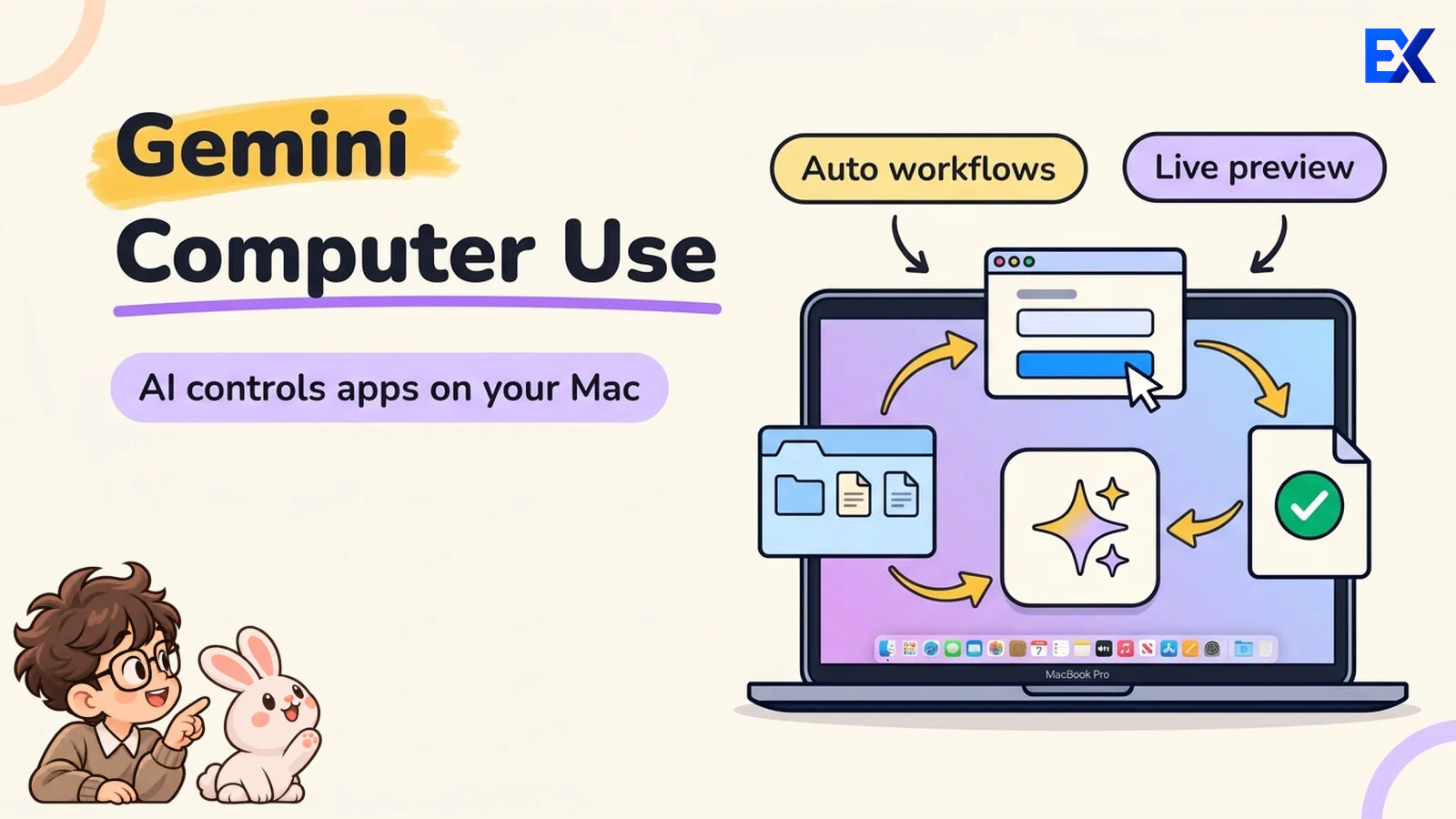
Complete guide to Gemini Computer Use for Mac (Nov 19, 2026): how @Computer use works in an isolated virtual window, Apple Silicon & macOS Sequoia requirements, permissions, backups, 7 agent risks, and rollout availability.
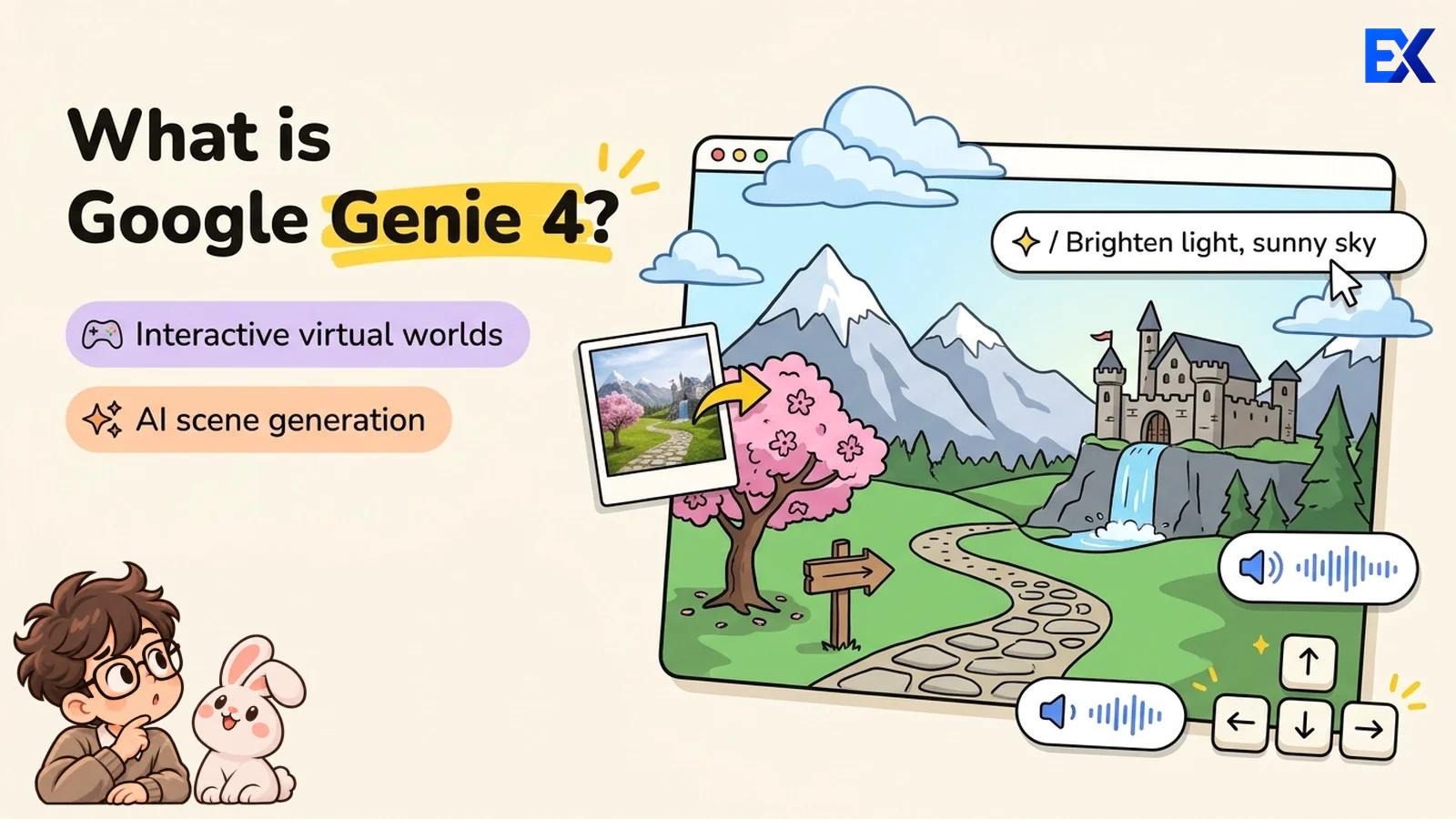
What is Google Genie 4? Explore 720p real-time interactive worlds, native audio, Genie 3 differences, Project Genie access and Gemini API availability.
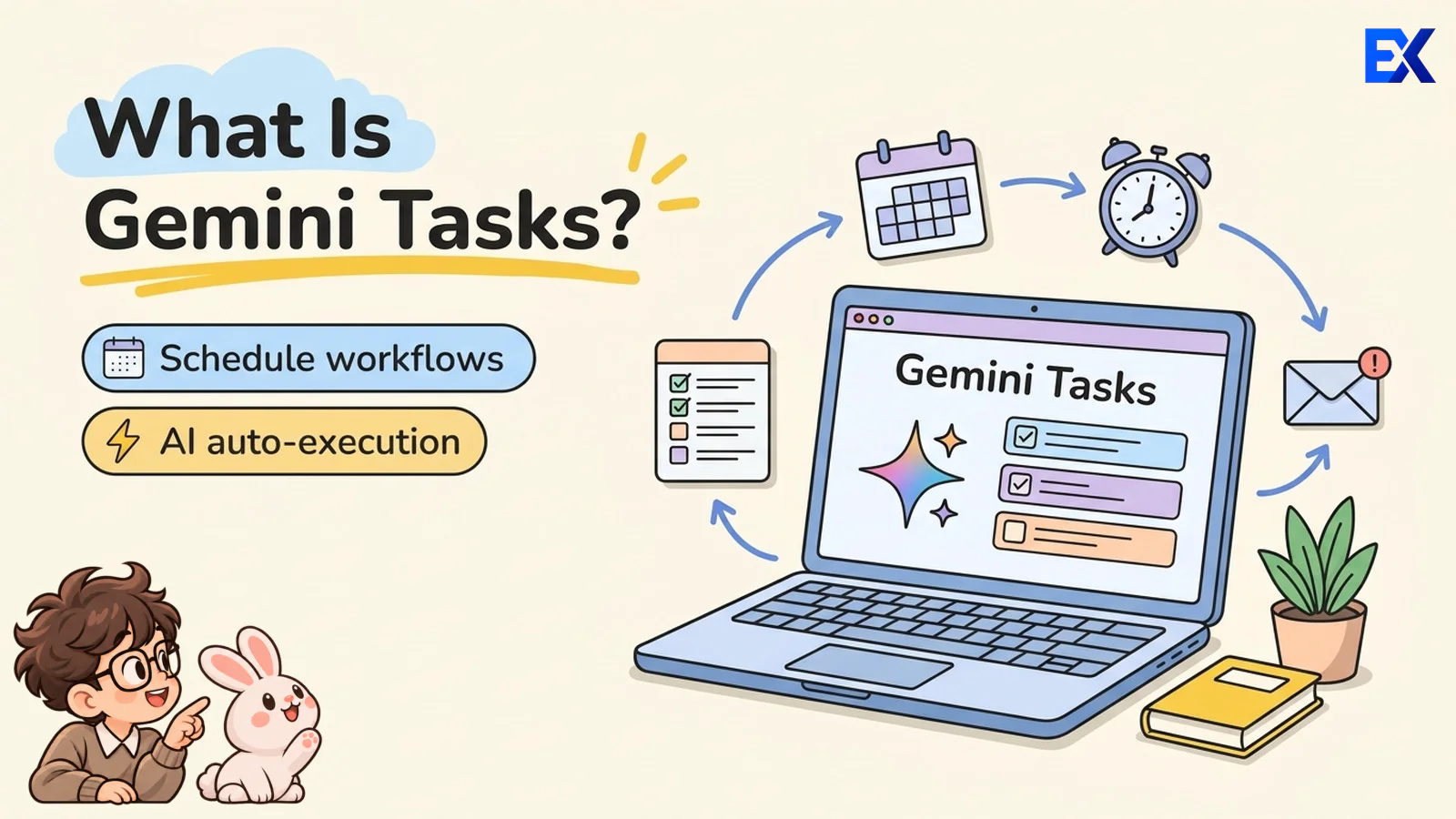
Tasks in Gemini (commonly searched as Gemini Tasks, and previously previewed as Gemini Spark) is a multi-step agentic mode inside Gemini powered by Gemini 4 Hydrogen. Instead of answering one chat turn at a time, you define an outcome, allowed data sources, and optional triggers; Gemini plans the steps, coordinates connected apps or a browser, works in the background, and notifies you when results are ready.
On November 17, 2026, Google began rolling out Tasks in Gemini free of charge for eligible users aged 18+ in six markets: the United States, India, Canada, Australia, Japan, and South Korea. Outside those six launch markets (and excluding restricted regions), access currently requires a Google AI Pro or Google AI Ultra subscription on a personal Google Account, subject to account-level rollout.
How Tasks in Gemini Works: Task, Schedule & Skill
According to Google's official Help documentation (checked November 22, 2026), task automation in Gemini is built on three core blocks:
Task (What): Your high-level objective or deliverable—for example, organizing inbox action items after travel, tracking price drops, or compiling multi-source research into downloadable files (PDF, Docs, Sheets, or slides).
Schedule (When): An automated time-based or event-based trigger that tells Gemini when to step in and run your task in the background.
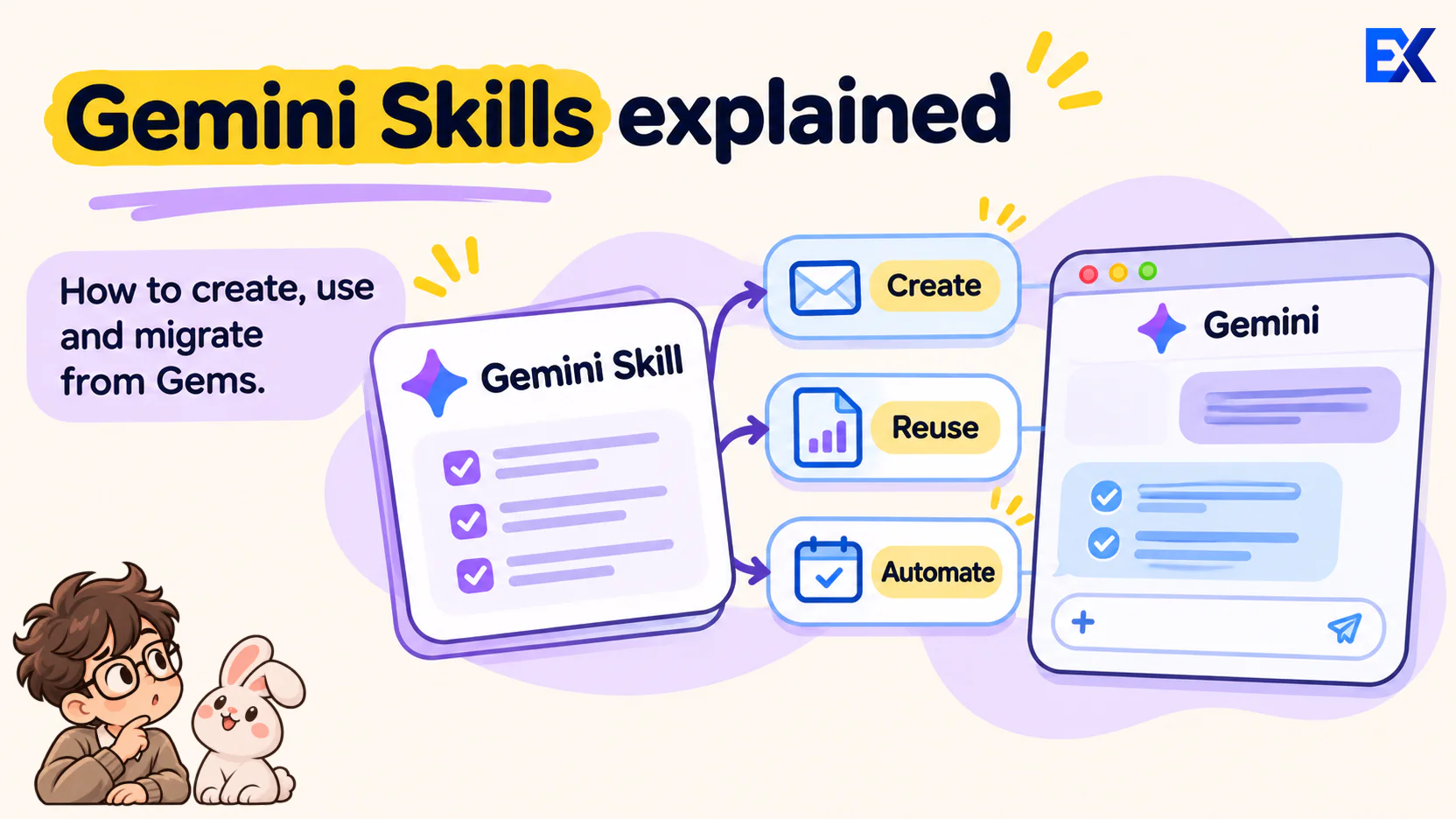
Skill (How): Reusable instructions and tool workflows that teach Gemini how to perform a specific job consistently; type @ in a task thread (or / when setting a schedule) to invoke a skill, or type "set up", "get started", or "interview me" inside a task to configure your first skills conversationally.
Illustrative diagram of the 3 building blocks in Gemini Tasks: Task, Schedule and Skill
Think of Tasks as complementary to regular Chat rather than a total replacement: use Chat for rapid Q&A, and switch to Task for multi-step workflows that span apps, files, or recurring schedules. For background on the underlying model, see Google Launches Gemini 4 Hydrogen.
What Changed in the November 17, 2026 Update?
Google's November 17 release notes highlight both the six-country free expansion on Gemini 4 Hydrogen and several U.S.-only English rollouts for personal 18+ accounts that should not be assumed available globally:
Update announced Nov 17, 2026
Announced regional scope
Key operational details
Background execution on Gemini 4 Hydrogen
Free in 6 markets (US, India, Canada, Australia, Japan, South Korea); Pro/Ultra elsewhere
Handles multi-step research, itinerary planning, and downloadable files
Google Pay single-use virtual card checkout
U.S. only (English, web/Android/iOS, 18+ personal accounts)
Tracks restocks/price drops under a max cap; pauses for 1-tap device approval before charging
Texting Gemini via Google Messages / iMessage
U.S. only (verified US phone & eligible carrier at gemini.google.com/channels)
Text tasks, attach photos, and reply mid-run to steer execution
Emailing Gemini at gemini@google.com
Google emphasizes that consequential actions—especially purchases, bookings, or modifying external records—pause for explicit user confirmation.
Browser Execution Modes & Security Boundaries
When a task requires interacting with live websites (such as comparing travel prices or updating forms), Gemini chooses between two browser environments:
Local Chrome Auto Browse (desktop only): Connects to your desktop Chrome browser and uses websites where you are already signed in (plus Password Manager if permitted). Your computer and Chrome must stay awake and running; if you close the device, Gemini may fall back to the remote browser. You can disable this anytime under More > Settings > AI Innovations > Gemini in Chrome.
Cloud Remote Browser (web & mobile): Runs in Google's cloud environment, so tasks keep running even when your device is closed (and is the only browser mode on mobile). Whenever a site requires signing in or sensitive input, Gemini pauses and prompts you to take over.
Illustrative comparison of Local Chrome auto browse vs Cloud remote browser in Gemini Tasks
Strict security rule from Google Help: Never type login passwords, payment card numbers, or sensitive credentials directly into a task prompt. Take control of the local or remote browser to enter details on the official webpage itself, and avoid scheduling sensitive actions to run unattended while you are offline.
Eligibility, Schedule Limits & Regional Rollout
To assign tasks in Gemini, Google requires all four prerequisites: you must be 18 or older, signed into a personal Google Account (work and school Google Workspace accounts are not currently supported), have History turned on, and use gemini.google.com, the Gemini mobile app, or the Gemini app on Mac.
Google's schedule documentation also defines strict active schedule quotas and concurrency caps by plan tier:
Plan / Tier
Max active schedules
Supported schedule types & frequency
Regional eligibility
Free (6 markets) or Google AI Plus
10 active schedules
Up to once per day during a general time window (overnight, daytime, or evening)
Free tier live in US, CA, IN, JP, KR, AU (Nov 17, 2026)
Supported globally except EEA, Nigeria, Switzerland, and the UK
Illustrative comparison of Gemini Tasks schedule limits: Free/Plus vs Google AI Pro/Ultra
Keep these runtime constraints in mind when designing automations:
15 concurrent tasks cap: Gemini allows at most 15 tasks running at the same time; if 15 are active or your account hits its compute usage limit, due schedules will not trigger.
Approximate timing & monitor limits: Scheduled runs may be delayed under high traffic, and Google explicitly notes that Topic monitors are not suited for split-second alerts such as immediate ticket drops.
Note for readers in Vietnam & non-free regions: While Vietnam was not in the November 17 free rollout, it is outside the four restricted European/African exclusions, meaning eligible personal accounts on Pro or Ultra fall inside the supported rollout perimeter. Compare options at Gemini AI Pro and Gemini AI Ultra (or read Claude Pro, ChatGPT Plus or Google AI Pro), and verify the Task toggle directly on your account before upgrading.
How to Create & Manage Gemini Tasks in 4 Steps
Switch to Task mode: Open gemini.google.com (or the Gemini Mac/mobile app) with an eligible 18+ personal account and History enabled, then click Task instead of Chat below the input box.
Define your goal, sources & approval gates: Specify the exact deliverable, allowed Connected Apps or uploaded files (local, Drive, or Notebook), invoke reusable instructions with @Skill, and explicitly state which external actions require your sign-off.
Add a schedule & run a test: State the timing in natural language, or go to Scheduled in the left sidebar → Create a scheduled task. To test immediately without waiting, hover over an active schedule and click More > Run now.
Monitor & steer mid-run: Click the progress chip at the top of the thread to open the Work panel, track connected schedules, or enter follow-up instructions directly into the thread to adjust Gemini's approach without restarting.
Illustrative 4-step workflow to create and manage automated tasks in Gemini
Illustrative prompt (sample template, not an EmpireX benchmark test):
Every Monday at 7:30 AM, review my upcoming 7-day Google Calendar and unread action-item emails. Build a summary table listing tasks, deadlines, and priority levels. Create reply drafts in Gmail only—never send emails or alter calendar events without my explicit approval.
Schedule management tips: Once a schedule finishes and is marked Completed, it cannot be edited or resumed (only deleted). Importantly, deleting a task thread deletes every schedule linked to that thread—if you want to stop runs temporarily, use Scheduled > More > Pause instead.
Tasks vs Scheduled Actions vs Google Tasks
Three similarly named features are easy to confuse:
Tasks in Gemini (Gemini Tasks): Multi-step agentic workflows on Gemini 4 Hydrogen combining connected apps, browser execution, @Skill workflows, and up to 50 time/event schedules on Pro/Ultra.
Scheduled Actions: The earlier chat-level scheduling feature that runs recurring chat prompts (documented separately by Google Help with its own UI and permissions).
Google Tasks: Google's traditional to-do list app. Even in regions without the multi-step Task mode yet, users can enable Google Workspace Extensions inside normal Gemini Chat for free to add reminders and sync tasks to Google Calendar.
Troubleshooting Common Issues
Missing Task toggle: Check all four prerequisites (18+, personal account, History on, supported region/plan) and confirm you are not signed into a Google Workspace work/school profile.
Schedule did not fire on time: Verify you have not exceeded 10/50 active schedules, 15 concurrent running tasks, or your compute usage limit.
Connected app errors: Confirm Gmail, Calendar, or Drive permissions inside Connected Apps before expecting background schedules to read them.
Unfocused output: Add concrete source constraints, target file/table format, @Skill tags, and explicit manual confirmation checkpoints.
Frequently Asked Questions
Can Gemini Tasks send emails or make purchases without asking?
Consequential actions—such as sending messages or completing U.S. Google Pay virtual-card checkouts—are designed around explicit approval gates. Always instruct Tasks to prepare drafts or summaries first and wait for your confirmation.
Do Gemini Tasks keep running if I close my browser?
Tasks running in the cloud remote browser continue even if you close your browser or turn off your computer. Tasks using desktop local Chrome auto browse require your PC and Chrome to remain awake (otherwise Gemini may switch to the remote browser or pause).
Does Gemini Tasks work on Google Workspace work or school accounts?
No. Per Google Help (checked November 22, 2026), Tasks in Gemini currently supports personal Google Accounts only.
Conclusion
Tasks in Gemini moves AI from single-turn chat answers to structured background execution built on Task + Schedule + Skill. Check your account eligibility, respect the 10/50 active schedule and 15 concurrent task limits, never paste credentials into prompts, and start with draft-only workflows before delegating sensitive actions.