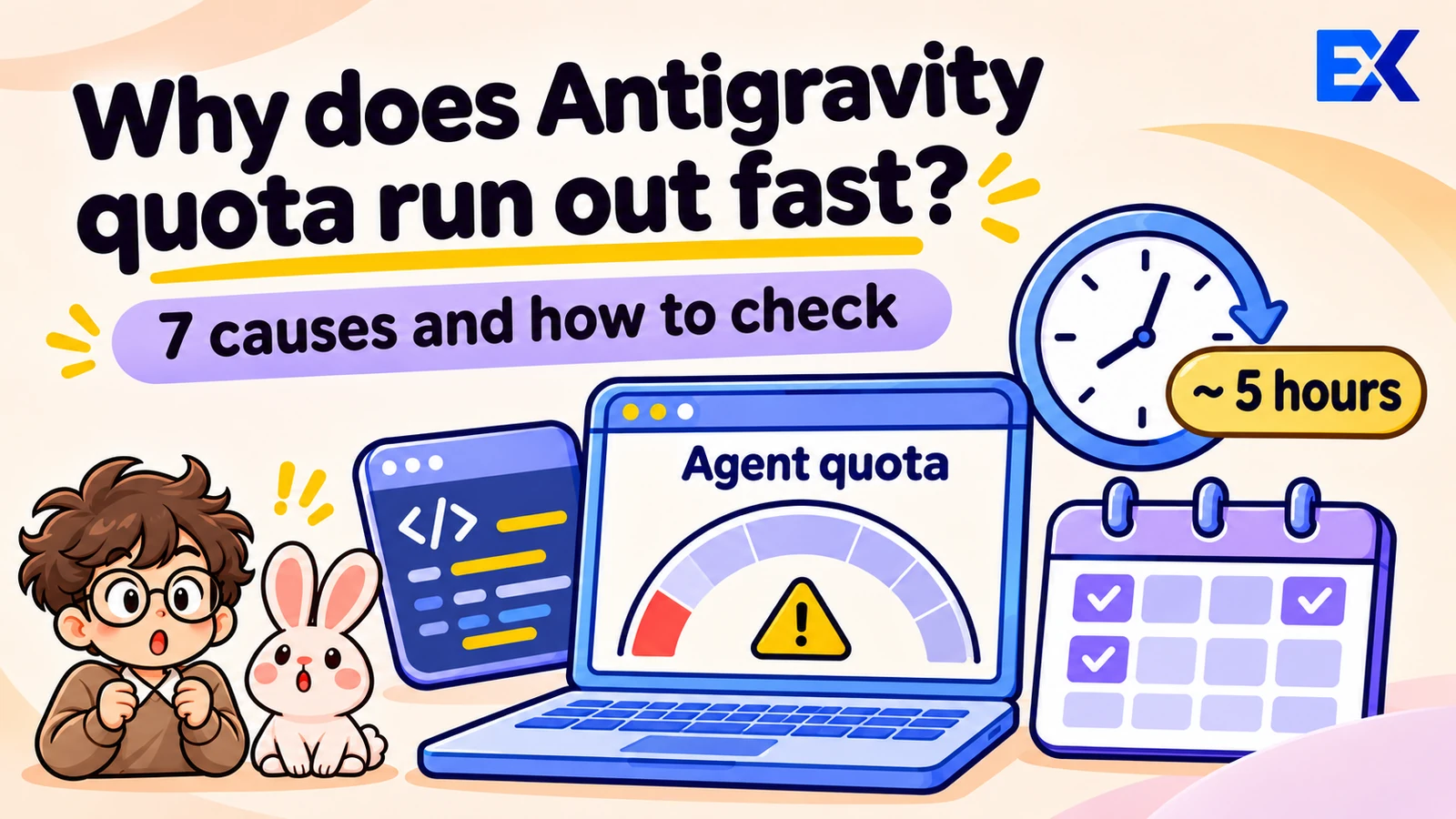
Fast quota exhaustion usually reflects agent workload, repeated retries, model choice, or weekly limits—not necessarily a broken paid subscription. Google explains that agent allowance depends on the amount of work performed, so a complex repository-wide task can consume far more capacity than a short question.
Google AI Pro and Ultra have baseline quota refreshes around every five hours, subject to weekly caps. Accounts without Pro/Ultra may follow a different schedule. Check Usage and the exact limit message before upgrading.
1. Understand the quota types
Limit or setting
What it means
What to check
Model-group quota
Some models share an allowance
Current model group in Usage
Five-hour baseline refresh
Pro/Ultra allowance refreshes during the week
Next refresh time
Weekly cap
Longer-term ceiling
Remaining weekly quota and reset
AI Credit Overages
Optional paid-credit use for eligible accounts
Whether enabled and its charges
Account entitlement
Access depends on signed-in account and plan
Google subscription status
Google does not guarantee a fixed prompt count for all workloads. Reading many files, running tools, testing or debugging repeatedly can increase usage.
2. Seven reasons you hit your limit
1. A multi-step agent task does more work than expected
Broad instructions such as “inspect the entire repo, fix everything, run tests and retry until successful” can trigger many operations. Fix: ask for a plan first, constrain the scope and tackle one module at a time.
2. A heavy reasoning model is used for a simple task
Use a model suited to the task and your current entitlements. Switching models is not a guaranteed fix because model groups and limits can differ.
3. Excessive context and unrelated files
Vague prompts may force agents to inspect far more of your project than needed. Specify a directory, function, file and expected output.
4. Repeated retries and debugging loops
Repeatedly asking an agent to try the same failing task may spend more quota without solving its root cause. Stop, inspect the actual error and correct dependencies or permissions first.
5. You reached the weekly cap despite a five-hour refresh
A five-hour reset does not erase a weekly cap. Inspect Five Hour Limit Remaining and Weekly Limit Remaining where shown.
6. Wrong signed-in Google account or expired entitlement
Check which Google account Antigravity is using and whether your subscription is active. Never provide passwords, recovery codes or session tokens to support representatives.
7. Confusion around Family, private and shared offers
Reseller labels like “private,” “shared” or “Family” do not independently prove which Google-side benefits share limits. Verify the specific product terms and account entitlement before attributing usage to another person.
Seven reasons Antigravity quota runs out fast
3. Diagnose Antigravity quota step by step
Confirm the correct Google account and active plan.
Open Antigravity Usage and inspect the current model, remaining allowance and reset messages; where supported, use CLI /usage or /quota.
Distinguish the five-hour quota from the weekly limit and any shared model-group limits.
Record the tasks that preceded the warning: repo analysis, refactor, test loops or browser automation.
Run a smaller, clearly scoped task to isolate workload size.
If considering AI Credit Overages, check the setting and costs first.
If usage still seems anomalous, contact support with redacted screenshots, model names and timestamps—not credentials.
The diagram below is an illustrative workflow, not a screenshot of the actual interface.
How to check Antigravity Usage and quota limits
4. How to conserve quota
Narrow work to relevant files and an explicit acceptance criterion.
Ask for a short analysis and plan before executing broad changes.
Break large tasks into independently testable steps.
Fix environment failures instead of repeatedly restarting the agent.
Set a stop condition when the same error recurs.
Keep a seven-day log of model choice, task type, limits and interrupted working time.
Example: “Inspect only src/auth/login.ts, explain the likely cause of the sign-in failure and propose up to three edits. Do not change unrelated files yet.”
5. When should you upgrade from Pro to Ultra?
Upgrade only after verifying your account, usage type and persistent capacity bottleneck. Ultra offers greater limits, not unlimited agent work; it does not fix wrong-account issues or a failing environment.