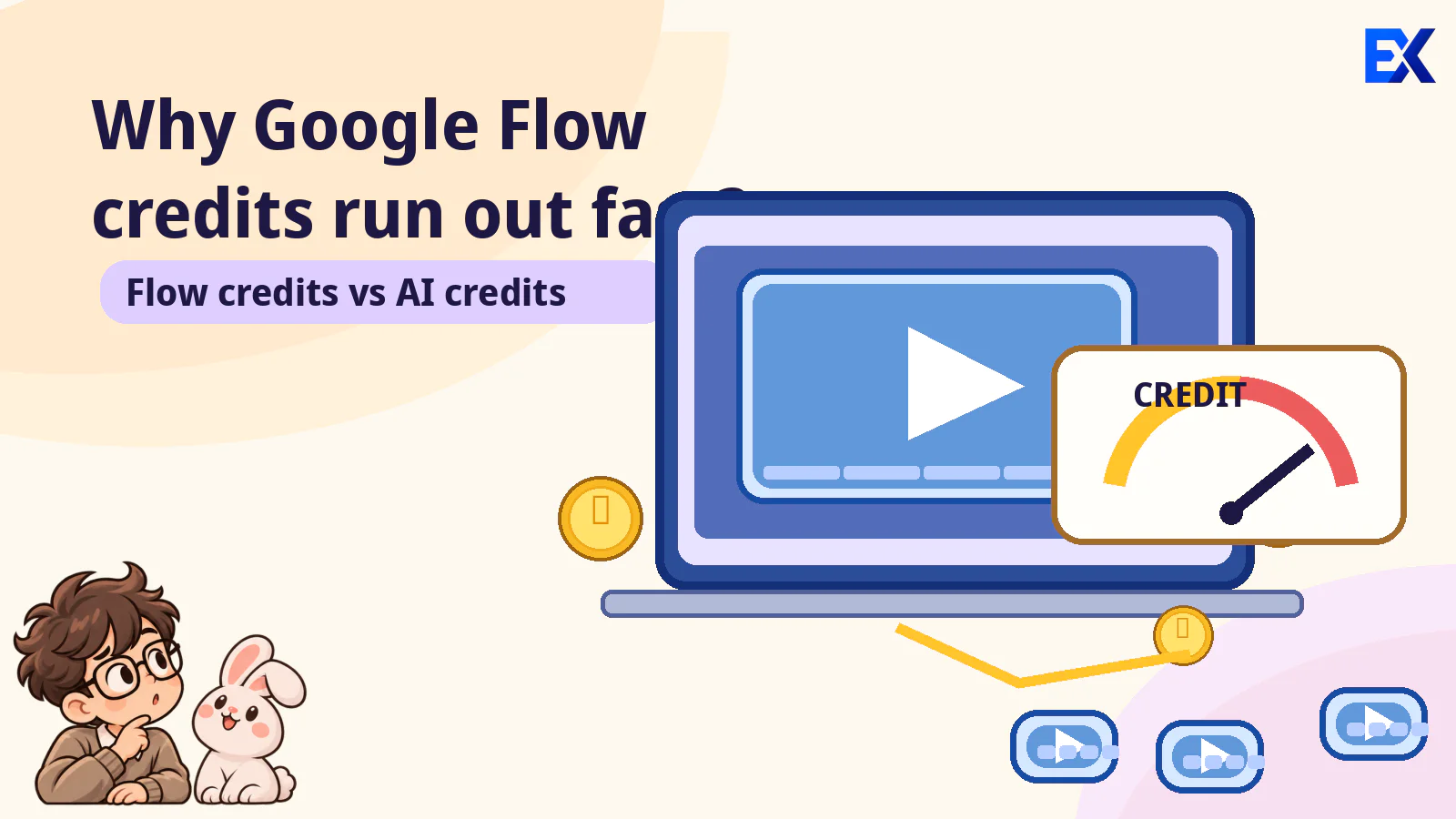
Google Flow charges credits per generation, not necessarily per click or request. Multiple outputs, repeated retries, premium modes and more demanding settings can therefore consume your balance faster than expected. Inspect the credit activity and applicable per-generation price before upgrading.
The rules depend on your current Google plan, credit source, model and region. Always check the latest official price table.
1. Flow credits vs AI credits
Topic
Google Flow credits
AI credits
Purpose
Eligible content generation in Flow
Eligible AI usage across supported Google products
Source
Daily or plan-related Flow allocation
Plan allowance, eligible promotions or purchased credits
Scope
Flow-specific features and policies
Depends on credit type and supported products
Refresh
Daily and subscription buckets follow different rules
Plan allocations and purchased credits may have different terms
Key caution
Do not assume unused credit rolls over indefinitely
Do not assume all sources have the same expiry
Google says Flow/AI credit balances are shared across devices for a signed-in account. Verify which balance is shown rather than treating every credit source as interchangeable.
Flow credits versus AI credits explained
2. Six reasons Flow burns credits quickly
1. One request generates several outputs
The official cost table is per generation, not per request. If you ask for multiple videos, their combined cost can be higher than expected.
2. Model and settings change the price
Different models and modes may have different costs. Confirm the current applicable price immediately before generation, rather than relying on an old fixed-credit estimate.
3. Repeated variants and retries
Producing several versions of each scene across several rounds adds up quickly. Write a storyboard and reduce unnecessary retries.
4. Creating shots without a plan
Undefined character consistency, motion, setting or shot sequence may force additional work. Decide on a scene list before creating videos.
5. Confusing daily credits with billing-cycle credits
Daily allowances and subscription credits may refresh differently. Do not assume unused balances automatically carry over.
6. Shared eligible Family allowances
Google supports AI credit sharing for eligible family groups, but the plan manager controls purchasing more credits or changing the subscription. Inspect actual account activity before assigning a cause.
3. How to inspect Google Flow credit activity
Confirm the correct signed-in Google account.
Open Google Flow and its available credit-balance and activity information.
Compare individual generations with their models, modes and credit charges.
Identify daily allocations, subscription credits or purchased credit sources where available.
Review refresh schedules and expiry rules for the credit type.
If a deduction appears anomalous, save redacted screenshots and contact the appropriate support channel.
The diagram below is illustrative and is not an actual UI screenshot.
Google Flow credit balance and activity checklist
4. Troubleshooting unexpected credit deductions
What you notice
What to check
Next step
More credits used than expected after pressing Generate
The actual number of generations, outputs and mode
Check the per-generation charge before retrying.
Your balance falls without a Flow video
Google One AI credits activity, the signed-in account, service category and timestamps
Check other eligible AI services and any shared Family allowance.
Credits do not refresh as expected
Daily, plan and purchased credit buckets and their respective refresh dates
Review the terms for each credit source rather than combining them blindly.
A failed generation appears to use credits
The job status and the actual charge in activity history
Save the relevant evidence and contact Google; do not assume every error is refunded.
Where to check: Google One's AI credits activity reports dates, service categories (including Google Flow), and credits added or deducted. Eligible Family sharing may also affect usage. See Google's official AI credits guide.
5. How to conserve Flow credits
Plan shots and storyboards before generating.
Test a limited number of variants before larger batches.
Choose the model and quality setting appropriate for the scene.
Avoid generating unnecessary multiple outputs.
Keep notes on effective prompts and available parameters.
Confirm the displayed credit price before each generation.
Illustrative calculation only: if a generation costs 20 credits, three such generations would cost 60 credits. This is not a claim about any model's current rate.
6. When to buy more AI credits or upgrade
Estimate expected monthly generations × average credits per generation. Compare that to your available allowance and needed features.
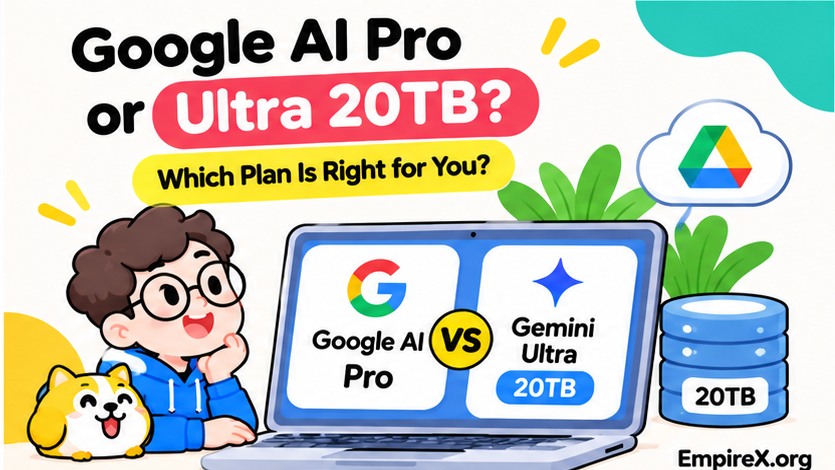
Check EmpireX's Google Flow Pro and Google Flow Ultra listings for their actual plan terms, activation conditions and warranty. Google One also documents purchased AI credit options for eligible Google AI Pro and Ultra members. Purchased credits and recurring entitlements are not automatically identical.
7. FAQs
Can one Generate action use several credits charges?
Yes. The fee is based on generations, so generating several outputs can increase the total charge.
Are Flow credits and AI credits identical?
Their uses overlap, but allocations, refresh schedules and eligibility may differ. Check the exact source of your balance.
Do credits refresh?
That depends on the allocation type. Subscription credits may refresh at billing-cycle start, while daily credits use a separate schedule.
Do unused credits roll over?
Do not assume so. Check the terms for that specific credit type.
Are failed video generations automatically refunded?
Check account credit activity and Google's current handling rules. Not all failure situations should be assumed to have automatic refunds.
Can my family share AI credits?
Eligible Google One family groups may share certain AI credit benefits; plan management controls and restrictions apply.
Bottom line: Track generations, distinguish credit sources, check refresh timing and only then consider an upgrade.